
Two minutes with a phone, tablet, or computer, then the Apple follows the Mets by itself.
You need the Apple plugged in, any device with Wi-Fi, and your home Wi-Fi password.
Set up Wi-Fi
- Plug in the Apple.
Its screen shows a QR code, then the same details typed out. It switches every ten seconds.
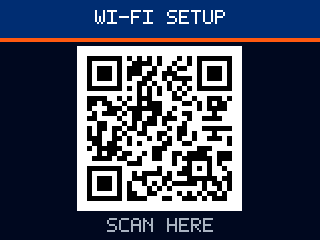
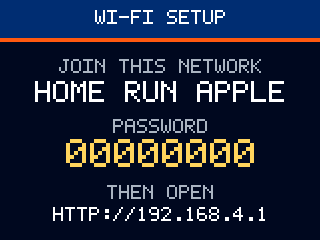
Your Apple shows its own password; this one is an example.
- Join the Wi-Fi network Home Run Apple.
Phone or tablet:
scan the code and tap the prompt.
Computer, or no prompt:
open your Wi-Fi settings, pick Home Run Apple, and type the password from the screen.If your device says "no internet", stay connected.
- Open the setup page.
Phones and Macs open it on their own. Android, Windows, and Chromebooks: tap the sign-in notification.
Nothing opened? Type
192.168.4.1into your browser. - Enter your home Wi-Fi password and tap Join.
Your network is already picked. Wait for the page to say Connected.
Could not join? Check the password. The Apple only joins 2.4 GHz networks; most home routers have one.
After setup
Game day
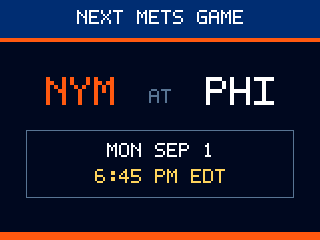
The next matchup and start time.
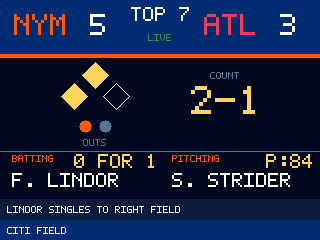
Score, inning, count, runners, batter, and pitcher, a few seconds behind the broadcast.
The celebration plays and the Apple rises for the Raised time setting, 30 seconds unless you change it.
Configure Settings
On your home Wi-Fi, open home-run-apple.local in a browser. If that does not load, use the numeric address the setup page showed you.
- Raised timeHow long the Apple stays up, 5 to 120 seconds.
- MotorOff keeps the Apple still. Celebrations still play on the screen.
- Pause the AppleOff unless you turn it on. On stops following games and celebrating until you turn it off.
- Stay up for the whole track on a winOn unless you turn it off. The game is over, so the Apple stays raised until the win track ends, up to seven minutes. Off, a win uses the Raised time like a home run.
- Screen brightnessDims the display without turning it off.
- VolumeHow loud celebrations play through the Apple's speaker.
- Sleep screen between gamesTurns the screen off until the next game starts. Covers off days and the offseason.
- Time zoneGame times on the screen. Set from the device you used for setup; change it here if you move.
- Update automaticallyOn unless you turn it off. Installs new firmware between games, early in the morning.
- Password lockOff unless you turn it on, which means anyone on your Wi-Fi can change settings. When you turn it on, the page shows the password once. Write it down.
Tap Save after changing anything.
Audio
The Audio tab of home-run-apple.local lets you add and manage your own tracks. The Apple keeps up to 200, and a large file takes a moment because your phone converts it before sending it.
- Add a trackPick an MP3, M4A, WAV, or most other audio files, up to 30 MB. Drag the handles to keep the part you want, up to seven minutes. Choose whether it plays for home runs, Mets wins, both, or one player.
- What plays for how longA home run plays the start of the selected audio, for as long as the Apple stays up. A win plays the whole thing.
- LibraryEvery track you add is listed here, with these controls.
Home runs Plays for a home run. Mets win Plays for a Mets win. + Play next Puts this track first for the next home run, the next win, or one player's next home run. Preview Plays the track on your device. Play on the Apple Plays it through the Apple's speaker, at the Volume setting. Rename Changes the name shown. Delete Removes the track from the memory card. Search and sort Appear once the list is longer than a page. Search matches any word in a track's name or its player's name. - Player tracksAssign tracks to a player. On a home run, plays instead of the general home run tracks.
- Up nextChoose exactly what plays on the next home run, the next Mets win, or a specific player's next home run. Tracks play in order, once each. When a queue runs out, the Apple picks at random again.
Reset button
- TapShows the Apple's address and password on the screen for a minute. When Apple Lab is waiting to run a test, a tap approves it.
- Hold for one to three secondsThe screen says RELEASE TO RESTART. Let go and the Apple restarts, keeping its Wi-Fi and settings. It won't restart in the middle of a celebration.
- Hold for ten secondsCounts down, then forgets the Wi-Fi network and starts setup again. Let go early to keep everything.
Updates
The Apple checks for new firmware on its own and installs it between games, early in the morning. It restarts and is back in about a minute. On your home Wi-Fi, the Apple's settings page shows the installed version under Update, where you can check now or tap Install now instead of waiting.
It never installs during a game. If the new firmware fails to start, the Apple goes back to the old one on its own. Turn Update automatically off in Configure Settings if you would rather install by hand; you can also pick a file from the project's releases page there, or restart the Apple.
Troubleshooting
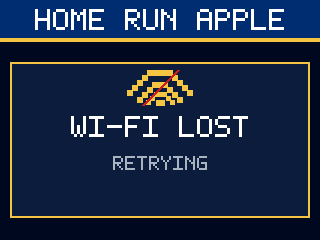
The Apple is reconnecting on its own. If your Wi-Fi password changed, hold the button ten seconds and set it up again.
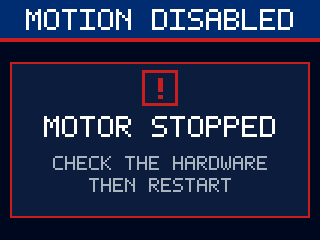
The Apple stopped its motor for safety. Make sure nothing blocks it, then unplug it and plug it back in.
Hold the button for about two seconds and let go. The Apple restarts and keeps its Wi-Fi. If the screen stays dark after a restart, check the display's wires inside.
Make sure your device is on the same Wi-Fi as the Apple. On Android and Windows, use the numeric address instead of the .local name.
Check the Wi-Fi password and that the network is 2.4 GHz. The Apple reopens its setup network so you can try again.